B2B Multi-Tenant SSO: Organizations, Verified Domains, Auto-Join
Create one organization per business customer, verify their domain, and turn on Auto-join so verified addresses join with your default role. Send their IT admin a 7-day setup link. The first 50,000 active users a month are free.
 Alberto RosasCo-founder and CEO
Contents
In this guide
Jump to the part you need.
This guide is for B2B software teams whose customers need their own people, roles and identity provider inside your product. Create one organization per business customer, with members, roles, invitations and a verified email domain. With Auto-join on, people who sign in with a verified email address at that domain join with your default role. The first 50,000 active users each month are free. SSO setup links need Scale or Enterprise in live applications; every Sandbox application has them.
Last updated: November 26, 2026. Prices checked against the live Didit price feed on November 26, 2026.
| Question | Answer |
|---|---|
| What you set up | One organization per business customer, with members, roles, invitations, verified email domains with Auto-join, and its own SAML or OIDC single sign-on. |
| Who does what | Your team creates organizations in the console. The customer's IT admin adds a DNS TXT record and finishes SSO through a setup link. |
| Where it lives | Business Console at Authentication > Organizations. The list counts organizations, members, SSO connections and verified domains above it. |
| Plan needed | SSO setup links and custom roles require the Scale or Enterprise plan in live applications. Every Sandbox application includes them. |
| Authentication price | The first 50,000 active users each month are free, then $0.02 per active user per month at list price. Live plan requirements are separate. |
| Identity checks | Billed separately: full KYC $0.33 per check, business verification (KYB) from $2.00 per company. |
| Main caveat | A domain can Auto-join only one organization of your application, and a setup link expires after seven days. |
Start free in the sandbox at business.didit.me. There is no sales call. Developers can connect Didit to an AI assistant through the Didit MCP server.
The result: one tenant object per business customer
We provide organizations inside Didit Authentication so your B2B application can group users by the company they work for. An organization is one of your customers, inside your application. It is separate from your Didit organization, which holds your own team in the Business Console. Once you turn organizations on, the console gives you:
- New organization, with a name and a slug that is unique in the application.
- A logo per organization, shown in the list, on the organization page and on the hosted approval screen where people choose the organizations an agent may use. No logo means the first letter of the name.
- Members and roles:
admin,member(the default) andbilling, plus custom roles with their own permission keys on Scale, Enterprise and in every Sandbox application. - Invitations by email, up to 20 addresses at a time, with the role the invitations grant.
- Verified domains with Auto-join, so a colleague with a verified address at the customer's domain joins without an invitation.
- Company single sign-on with SAML or OIDC, configured by the customer's IT admin through a setup link.
Your application reads the person's organizations and roles from their token and session, then decides what each role may do. We do not make your authorization decisions for you, and we do not yet let people create their own organizations from your app. The technical reference is the Didit Authentication documentation overview, and the Didit Authentication product page shows what the product covers before you configure it.
Prerequisites
| Requirement | Detail |
|---|---|
| Plan | SSO setup links and custom roles require the Scale or Enterprise plan in live applications. Every Sandbox application includes them. |
| Application | A Didit application with Authentication configured. Use a sandbox application first: its issuer is https://<name>.sandbox.auth.didit.me, separate from live, with separate keys. |
| Console permission | The authentication permission at read to view the section and at write to change it. |
| API credential (optional) | An API key of the application, full access or scoped to the authentication resource at write; or an owner-approved grant with didit:management; or a console session. |
| Customer side | An IT admin who can add a DNS TXT record at _didit-auth.<domain> and configure their identity provider. |
Setup in seven steps
1. Turn organizations on for the application
Open Authentication > Organizations in the Business Console and find the Settings card. Turn on Organizations. Choose the Default role for new members, the role people get when they join through a verified domain or single sign-on (member unless you change it). Leave Require MFA for organization admins on. That switch is the organization_admins MFA policy: anyone who holds admin in any organization of your application must enroll a second factor, and GET /session/ stops accepting their session until the session meets the policy again. You can change the policy under Authentication > Security and sessions.
2. Create the organization and give it a logo
Choose New organization, enter the customer's name and a slug that is unique in the application. Open the organization and choose Upload logo: a PNG, JPEG or WEBP up to 2 MB, and a square image looks best. Change logo and Remove logo sit in the same place. The organization list shows each customer's members, verified domains, single sign-on status, MFA rule and creation date, and the key metrics above it count organizations, members, SSO connections and verified domains.
3. Invite the first members
Choose Invite member, enter up to 20 email addresses and choose the role for the invitations: admin, member or billing. We email each invitation. An invitation lasts 7 days and opens the hosted /invite page on your sign-in origin, where the person signs in or creates an account and joins. The organization's Invitations list shows when each one expires, with Resend and Revoke.
4. Verify the customer's email domain and turn on Auto-join
Add the domain to the organization. Add the TXT record Didit shows at _didit-auth.<domain> with the customer's DNS provider, containing the verification token. Check the domain. It shows as Verified once the record is found. If the domain stays unverified, check the TXT record's name and value against the console, then check the domain again.
With Auto-join on for a verified domain, a person who signs in with a verified email address at that domain joins the organization automatically, with your default role. A domain can Auto-join only one organization of your application.
5. Turn on the sso sign-in method for the application
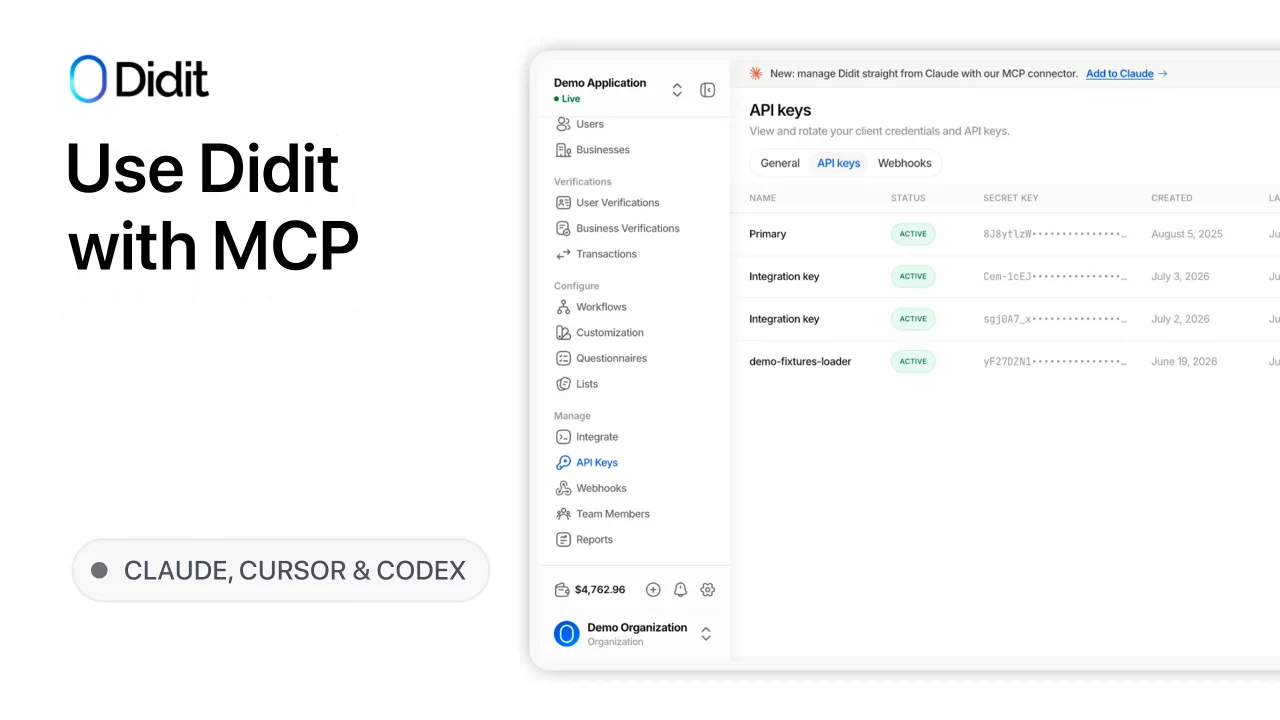
Enable the application's SSO sign-in method before testing company SSO on the hosted sign-in page. Each customer's setup link configures that organization's connection. The sso method setting makes organization SSO available on hosted sign-in. Use the same call shape as any other method on the Authentication management API:
curl --fail-with-body --request PUT "${MANAGEMENT_BASE}methods/sso/" -H "x-api-key: $DIDIT_API_KEY" -H 'Content-Type: application/json' -d '{"enabled": true}'MANAGEMENT_BASE is https://apx.didit.me/auth/v2/organizations/{org_id}/applications/{application_id}/authentication/. A full-access API key of the application covers it; a scoped key needs the authentication resource at write. An owner-approved grant with didit:management also works, and that is the grant an AI assistant connected to the Didit MCP server uses.
6. Hand the IT admin the SSO setup link
In the organization's Single sign-on card, choose Copy setup link and send it to the customer's IT admin through a secure channel. The link works for seven days and walks them through the SAML or OIDC connection. The SAML service provider metadata is published at {origin}/sso/saml/metadata/. The hosted sign-in page finds the connection from the person's verified email domain, from Use single sign-on, or from organization=<slug> on the sign-in URL. The organization list shows whether each connection is active, not set up, or waiting on a setup link that was sent. People who sign in through the customer's identity provider join the organization with your default role. The configuration fields of each protocol are in the sign-in methods documentation.
7. Read the organization and role in your app
Your app reads the person's organizations and roles from their token and session, and your backend makes every decision from a verified token. Verify the access token with the issuer's JWKS (ES256, then iss, aud, exp and typ: at+jwt). Reject access tokens with a non-null act claim unless the route accepts AI agents. Check membership and the required role in the organization the request targets. Check GET /session/ before a sensitive action. The token rules are in Tokens and JWKS, and the production checklist is in the Authentication integration guide.
Organization fields and settings
| Didit field or object | Example | What your app does with it |
|---|---|---|
| Organization slug | acme | Unique within the application. Pass it as the organization parameter on the hosted sign-in URL. |
| Role | admin, member, billing | Route and action authorization. A person can belong to several organizations with one role in each. |
| Custom role permission | payouts.approve | Fine-grained checks on top of the base role. Custom roles exist on Scale and Enterprise, and in every Sandbox application. |
| Default role for new members | member | The role applied when someone joins by verified domain or by company single sign-on. |
| Verified domain | acme.com with TXT at _didit-auth.acme.com | The Auto-join source. One domain can Auto-join one organization. |
| Auto-join switch | on | Lets a verified address at that domain join the organization without an invitation. |
| SSO connection status | active, not set up, waiting on a setup link | Check the connection in the Business Console's organization list. |
| MFA policy | organization_admins | Second factor for every admin. GET /session/ fails until the session meets the policy again. |
Test with sandbox data
Work in a sandbox application until the whole flow is proven. Its issuer is https://<name>.sandbox.auth.didit.me, its keys are separate from live, and it includes every plan's features, so custom roles and setup links are available whatever live plan your application uses.
- Create a test organization named after your own company, with a slug you will recognize, and upload a square logo.
- Invite one address you control as
adminand accept the invitation within the 7 day window from the hosted/invitepage. - Add a domain you own, publish the TXT record at
_didit-auth.<domain>, check it, and confirm the list shows Verified. - Turn Auto-join on, then sign in with a second verified address at that domain and confirm it lands in the organization with the default role.
- Open Copy setup link, complete a test SAML or OIDC connection, and complete a hosted SSO sign-in. Confirm the person joins with the default role.
- Call a protected endpoint that targets another organization with the same session. Confirm it refuses the request because the user has no membership there.
- Call
GET /session/for an admin who enrolled a factor and confirm it answers. Confirm it refuses an admin who did not enroll.
| What you see | Cause | Fix |
|---|---|---|
| Domain stays unverified | TXT record missing, on the wrong host, or not yet visible | Check the TXT record's name and value against the console, then check the domain again. |
| Colleague joins the wrong organization | That domain already Auto-joins another organization | A domain can Auto-join only one organization. Choose which organization receives automatic membership for that domain, and use invitations for people who need access to another organization. |
| Setup link no longer works | The link was copied more than seven days ago | Copy a new setup link from the organization's Single sign-on card and send it securely. |
400 {"error": "mfa_required"} | The sign-in did not meet your MFA policy. | Start sign-in again and complete the required MFA. If the sign-in flow requires enrollment, enroll an authenticator. Exchange the new authorization code at POST token/ within 60 seconds. |
403 on a setup route | Token from POST /programmatic/login, a scoped key without the authentication scope, a key of another application, or a grant approved for another organization | Use the application's own key with the authentication resource, an owner-approved didit:management grant, or a console session. |
401 on a setup route | No credential at all | Send x-api-key or a bearer token. |
Stop new members from joining through domains and invitations
To stop a customer's new members from joining through its domain or invitations, do two things. These steps address new joins through those two routes.
- Turn Auto-join off for the verified domain so new colleagues stop joining on their own.
- Revoke pending invitations in the organization's Invitations list.
What it costs
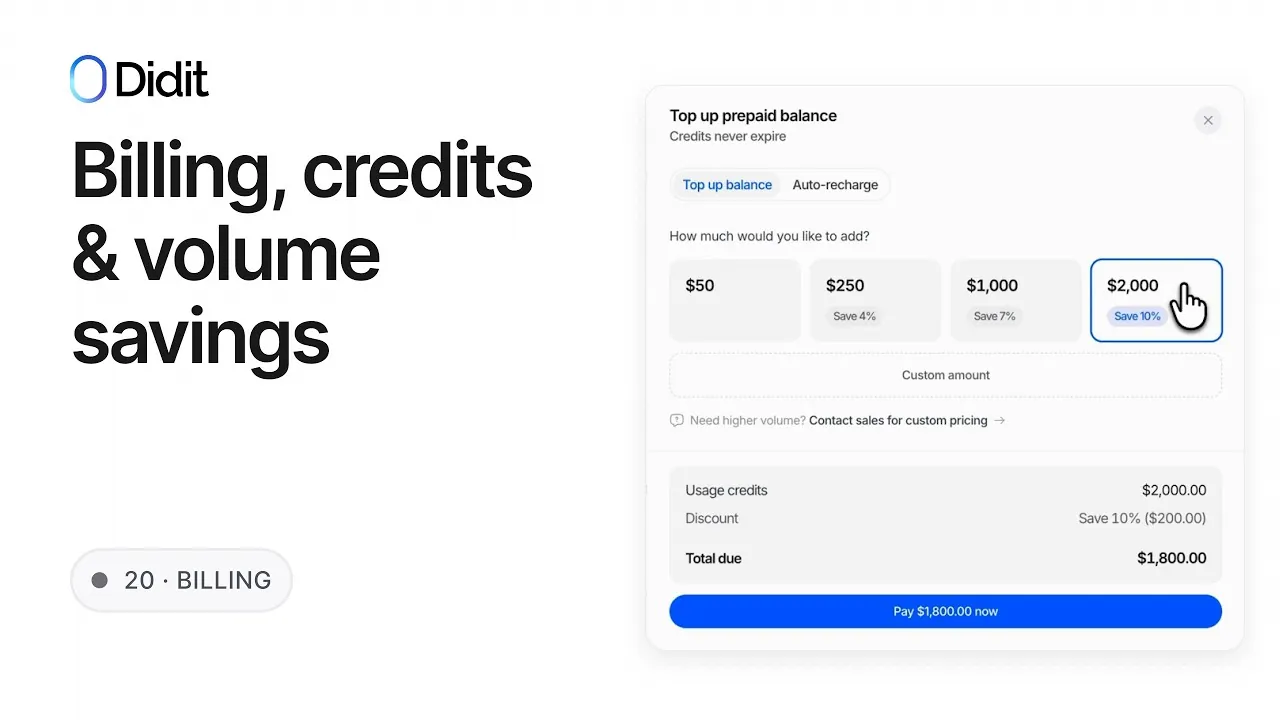
Authentication is billed per active user: the first 50,000 active users each month are free, and each active user after that costs $0.02 per active user per month at list price. SSO setup links and custom roles need the Scale or Enterprise plan in live applications, and every Sandbox application includes them. Live plan fees, credits and any identity checks are separate. Unit prices are on the pricing page.
Identity checks are separate line items, and B2B onboarding often means business verification: KYB from $2.00 per company, company AML $0.20 per check, person AML $0.20 per UBO, and a linked full KYC at $0.33 per person.
At 80,000 monthly active users, 30,000 are billable after the 50,000-user allowance. At $0.02 each, that is $600 in monthly Authentication usage at list price, before plan discounts or credits. Sandbox testing is free. Live plan fees, credits and any identity checks are separate.
Sources
- Didit docs: Authentication overview
- Didit docs: Organizations for B2B Apps, members, roles and company SSO
- Didit docs: Sign-in methods, including organization SSO
- Didit docs: Set up Didit Authentication by API
- Didit docs: Tokens and JWKS
- Didit docs: Authentication integration guide
- Didit docs: Authentication console guide
- Didit pricing page and pricing as JSON, read November 26, 2026
- Didit docs: pricing and billing rules
- Didit MCP server
- Didit Business Console
Next step: open the console at business.didit.me, create a sandbox application, and turn on Organizations. No sales call is needed to set up a customer, verify a domain or hand out a setup link, and the first 50,000 active users each month are free.
Try it
Try this in the sandbox
Run the check this guide describes, free.
The product this post is about, taken from its topic. Run it free in the sandbox.
Author
Alberto Rosas
Co-founder and CEO

Keep reading
Other guides in the same topic.
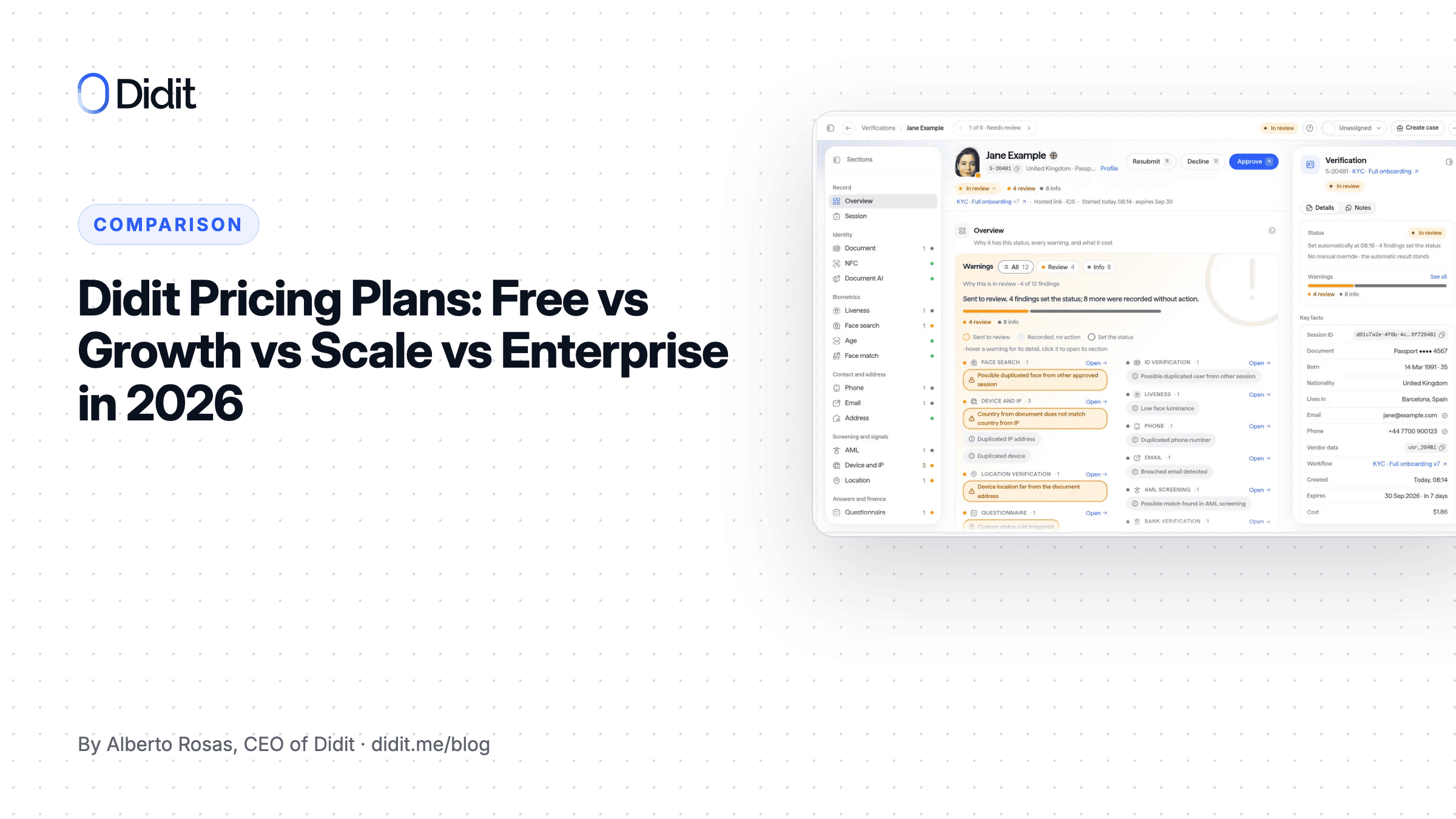 Didit Pricing Plans: Free vs Growth vs Scale vs Enterprise in 2026
Full KYC is $0.33 a check at list on Free, $0.3168 on Growth ($99/mo) and $0.297 on Scale ($299/mo). Monthly credit buys 30, 363 and 1,178 whole checks. Enterprise is a custom annual contract from $15,000 a year.
Alberto RosasNov 26, 2026 How to Detect Duplicate Accounts With Device Fingerprinting (2026)
Device and IP analysis runs inside every Didit session at $0.03 per check. Read the device analysis results on the decision and act on a confirmed duplicate, a possible duplicate or a blocklisted fingerprint.
Alberto RosasNov 26, 2026 How to Require Step-Up Verification Before Payouts and Withdrawals
Set a payout threshold and check each withdrawal with Didit. If verification is required, send the user to verify and release the payout only after your backend confirms approval.
Alberto RosasNov 26, 2026Questions
Frequently asked questions
How does verified domain Auto-join work in Didit Authentication?
The customer adds a TXT record at _didit-auth.<domain> containing the token the console shows, and the domain shows as Verified once that record is found. With Auto-join on for a verified domain, a person who signs in with a verified email address at that domain joins the organization automatically, with your default role. No invitation is needed.
Can one email domain Auto-join more than one organization?
A domain can Auto-join only one organization in your application. Choose which organization receives automatic membership for that domain, and use invitations for people who need access to another organization.
Which roles can members of an organization hold?
Every organization uses three roles: admin for people who manage it in your app, member for everyone else and the default, and billing for people who handle its billing. On Scale and Enterprise plans, and in every Sandbox application, you can also define custom roles. Each custom role has its own key and a set of permissions your app checks, such as payouts.approve. A member can hold a custom role alongside their base role.
Which plans include SSO setup links and custom roles?
SSO setup links and custom roles require the Scale or Enterprise plan in live applications. Every Sandbox application includes them, so you can test before upgrading.
How long does an SSO setup link last, and who uses it?
A Didit organization's SSO setup link lasts seven days. You copy it from the organization's Single sign-on card and send it securely to the customer's IT admin, who works through the SAML or OIDC connection themselves. The organization list then shows whether the connection is active, not set up, or waiting on a setup link that was sent.
How much does B2B multi-tenant SSO cost in Didit?
The first 50,000 active users each month are free, then $0.02 per active user per month at list price. SSO setup links and custom roles need the Scale or Enterprise plan in live applications, and every Sandbox application includes them. Identity checks such as KYC at $0.33 and KYB from $2.00 per company are billed separately when you run them.
How does Didit find the right SSO connection when someone signs in?
The hosted sign-in page finds the connection from the person's verified email domain, from Use single sign-on, or from organization=<slug> on the sign-in URL. The SAML service provider metadata is published at {origin}/sso/saml/metadata/. People who sign in through the customer's identity provider join the organization with your default role.
What happens to an admin's session when MFA is required?
Under the default organization_admins policy, anyone who holds admin in any organization of your application must enroll a second factor. GET /session/ stops accepting their session until it meets the policy again. You can change the policy under Authentication > Security and sessions, or with mfa_policy in the application settings.
Can people create their own organizations from my app?
Not yet. Organizations are created by your team in the console with New organization, including the name and a slug that is unique in the application. People then join by invitation, by verified domain Auto-join, or by the customer's single sign-on connection.
What is the difference between a customer organization and my Didit organization?
A customer organization belongs inside your application and holds your customer's members, roles, domains and SSO connection. Your Didit organization is the team that holds your own applications in the Business Console, with its own plan, billing and permissions.
How do I test Auto-join and SSO before going live?
Use a sandbox application: its issuer is https://<name>.sandbox.auth.didit.me, with keys separate from live and every plan's features included. Create a test organization, verify a domain you own, turn Auto-join on, sign in with a second address at that domain and confirm the membership and role. Then complete a test connection from a setup link, complete a hosted SSO sign-in, and check a protected endpoint for a second organization with the same user.
Compliance built in
Audited, certified and attested.
We hold the certifications and build each country's rules into your flows, so you can launch anywhere without worrying. Security and Compliance center
- Regulation encoded into your flows
Tell us what you do and where. Didit lists the rules that apply to you, with sources, and builds the checks each country needs into one workflow.
- Ready for AMLR
Every requirement of the new EU anti-money laundering rules, from checking customers to human review, is already covered by a Didit check.
- Tested in Spain's Treasury sandbox
Spain's Treasury published its supervised sandbox report on Didit's NFC plus active liveness onboarding; SEPBLAC took part and valued the added measures positively.
- Audited, not self-declared
iBeta Level 1 and Level 2. Liveness tested under ISO/IEC 30107-3.
Your obligations · 3 regions
 SOC 2 Type 2
 ISO 27001
 iBeta Level 1 and Level 2
 EU regulator attestation
 FSM youth protection
 GDPR
 EBA remote onboarding
 MiCA compatible
 FIDO Alliance member
- AMLREU AML Regulation ready
Integration · Didit MCP
Run Didit from your own AI agent
Connect Didit to Claude, Cursor, VS Code or ChatGPT and just ask in plain words. Your agent can do anything you can do in the console, with the same permissions you have.
 Add to Claude
 ChatGPT
 Cursor
- Build workflowsDescribe the checks you need. The agent creates and publishes the flow.
- Run investigationsAsk why a session was declined, review cases, search people and companies.
- Change rulesCreate payment rules, test them on past data and switch them on.
- Pull reportsAsk for numbers, exports or the audit log.
Didit Academy