Redirect
Redirect to the hosted page
Send your user to the page Didit hosts. Didit sends them back to your callback when they finish.
window.location.href = session.url;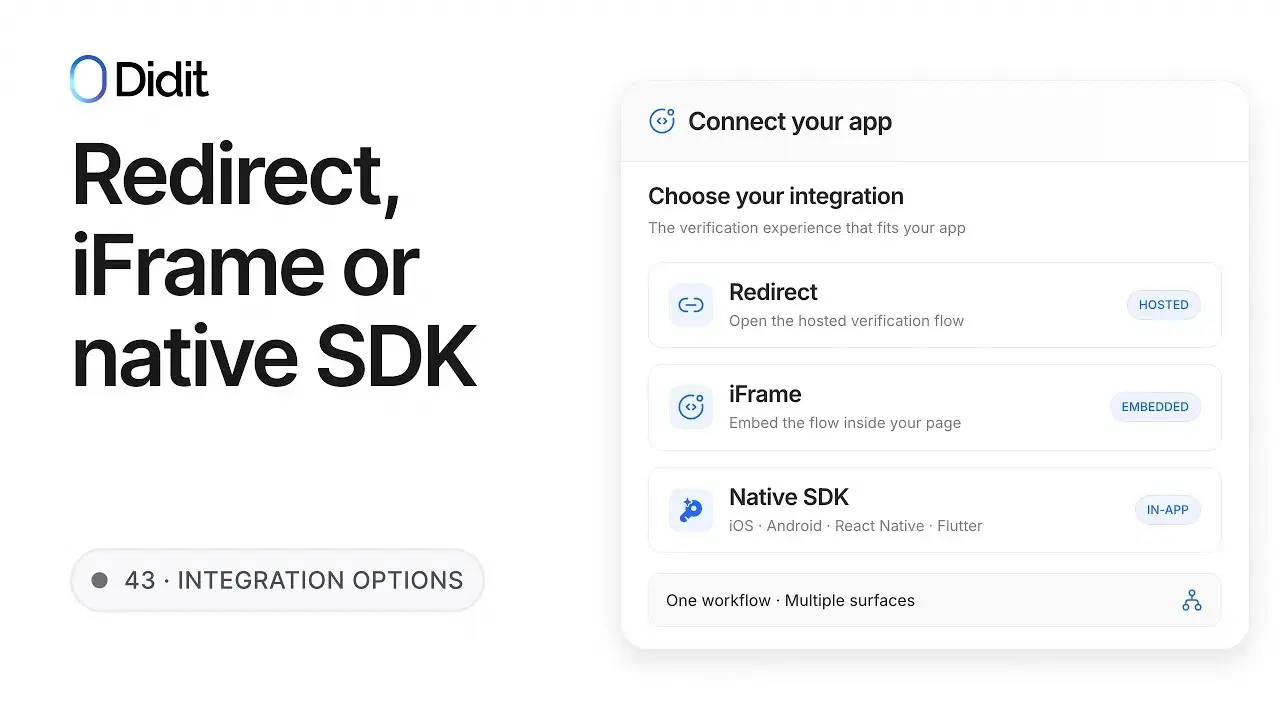
KYC Integration Options: Redirect Link vs iFrame vs Native SDK · 3 min · YouTube
Send
Send the user
Create a session on your server, then set the browser location to its URL.
verify.didit.me, or your own white-label domainUse the url field as Didit returns it. Do not build the URL from the session token.
async function startVerification() { const response = await fetch('/api/create-verification', { method: 'POST', headers: { 'Content-Type': 'application/json' }, body: JSON.stringify({ userId: 'user-123' }) }); const { verificationUrl } = await response.json(); window.location.href = verificationUrl;}
Return
Read the result on the way back
Didit adds the session ID and the status to your callback URL.
The URL your user lands on
https://yourapp.com/verification-complete?verificationSessionId=abc123&status=Approvedconst params = new URLSearchParams(window.location.search);const sessionId = params.get('verificationSessionId');const status = params.get('status');
GET /v3/session/{sessionId}/decision/.Which device goes back
callback_method | Who is sent to your callback |
|---|---|
initiator | Only the device that started the flow. This is the default. |
completer | The device that finished the flow, such as the phone after a QR code handoff. |
both | Whichever device is active. The most reliable choice when users move from a computer to a phone. |
The status value is the session status, such as Approved, Declined, In Review or Expired.
Questions
Questions about the redirect
When should I use the redirect?
Does the user leave my site?
Can I trust the status in the callback URL?
Which callback_method should I use?
What query parameters arrive on the callback URL?
How do I create the session for a redirect?
Can I open verification in a new tab instead?
Why is my callback never received?
How do I fix a redirect loop after verification?
Why is the status always Declined in my tests?
Compliance built in
Audited, certified and attested.
We hold the certifications and build each country's rules into your flows, so you can launch anywhere without worrying. Security and Compliance center
- Regulation encoded into your flows
Tell us what you do and where. Didit lists the rules that apply to you, with sources, and builds the checks each country needs into one workflow.
- Ready for AMLR
Every requirement of the new EU anti-money laundering rules, from checking customers to human review, is already covered by a Didit check.
- Trusted by EU regulators
After a year of supervised testing, EU financial regulators confirmed that verifying with Didit is safer than checking an ID in person.
- Audited, not self-declared
iBeta Level 1 and Level 2. Liveness tested under ISO/IEC 30107-3.
Your obligations · 3 regions
 SOC 2 Type 2
 ISO 27001
 iBeta Level 1 and Level 2
 EU regulator attestation
 FSM youth protection
 GDPR
 EBA remote onboarding
 MiCA compatible
 FIDO Alliance member
- AMLREU AML Regulation ready
Integration · Didit MCP
Run Didit from your own AI agent
Connect Didit to Claude, Cursor, VS Code or ChatGPT and just ask in plain words. Your agent can do anything you can do in the console, with the same permissions you have.
 Add to Claude
 ChatGPT
 Cursor
- Build workflowsDescribe the checks you need. The agent creates and publishes the flow.
- Run investigationsAsk why a session was declined, review cases, search people and companies.
- Change rulesCreate payment rules, test them on past data and switch them on.
- Pull reportsAsk for numbers, exports or the audit log.
Didit Academy
Learn Didit, one short video at a time
Start
Create a session
Create an account, create a session with your sandbox key and send the user to its URL.
Free sandbox. Credit applies to work-email sign-ups.