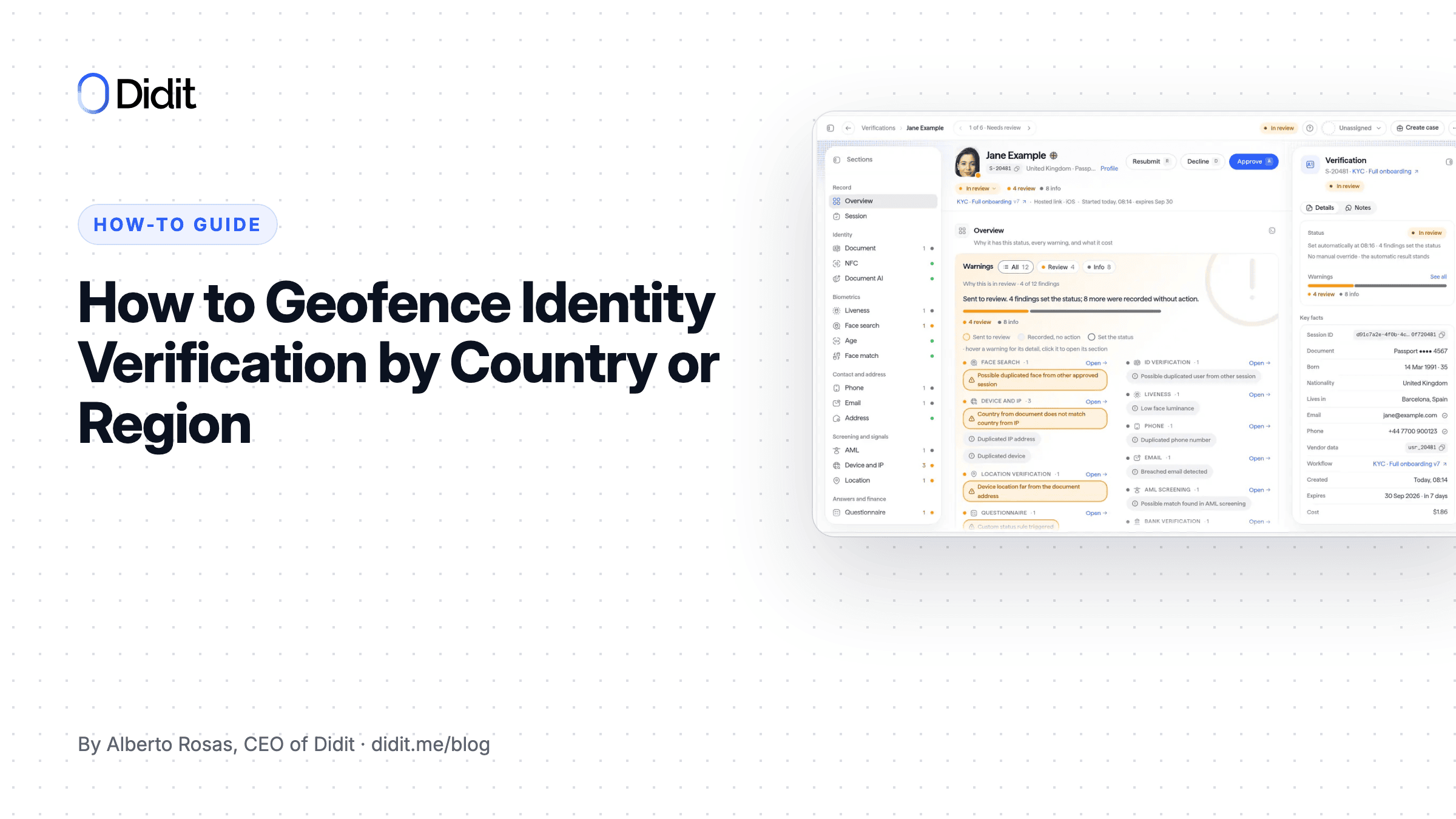
How to Geofence Identity Verification by Country or Region
Turn on the Didit geofence switch, list allowed countries, regions, circles or polygons, and read the result: outside, undetermined near a border, or in a blocked area.
 Alberto RosasCo-founder and CEO
Contents
In this guide
Jump to the part you need.
We built Location Verification for teams that need to check where a person is during verification: operators licensed in a few jurisdictions, and teams that must keep people out of a blocked place. The geofence lives in the workflow and costs $0.05 per check on top of the rest of the flow. The main caveat: Didit judges the whole accuracy circle of a position, so a fix taken near a border can come back undetermined rather than outside.
Last updated: November 26, 2026. Prices checked against the live Didit price feed on November 26, 2026.
| Item | What it is |
|---|---|
| What it answers | Was this person inside a jurisdiction we serve, at the moment they verified? |
| Where you configure it | The GEOLOCATION feature node in the workflow feature config, using the geolocation_* keys. |
| The switch | is_geolocation_geofencing_enabled, off by default. |
| Area types | A whole country, ISO 3166-2 regions of one country, a circle of 1 to 500 km, or a polygon of 3 to 200 points. |
| Limits | Up to 50 areas in one list, and at least one allowed area. |
| Blocked areas | A blocked area takes precedence over an allowed one when the area verdict is decided. |
| Position source | geolocation_position_source: device_and_ip, device_only or ip_only. |
| Price | $0.05 per check, from the Location Verification overview in the Didit docs. |
| Outcome codes | LOCATION_OUTSIDE_GEOFENCE, LOCATION_GEOFENCE_UNDETERMINED, LOCATION_IN_BLOCKED_AREA. |
Start free in the sandbox at business.didit.me, with no sales call. Developers can connect Didit to an AI assistant through the Didit MCP server, the step is documented on the Location Verification product page in the Didit docs, the exact shape of an area object is in the workflow feature configs reference, and every per-check price sits on the Didit pricing page.
What the geofence actually decides
For device-based checks, we explain why we need the position and record the accepted notice in consent. The browser or phone asks for permission. Each attempt uses one position and a single-use challenge valid for 5 minutes and bound to the session. With ip_only, we use the connection's IP location and skip the device permission prompt. The per-attempt timeout defaults to 20 seconds and the step allows 3 attempts by default.
The geofence evaluates whether the position's accuracy circle is inside an allowed area and whether a blocked area overrides that result. Each finding raises a warning, and the action configured on that warning decides the outcome: a geofence warning left on NO_ACTION changes nothing, while the strongest configured warning action determines the Location step status.
Outcome and recommended method
| Use case | Preset and source | What you get |
|---|---|---|
| Licensed activity in named jurisdictions: gambling, brokerage, lending | licensing preset with device_and_ip | A position outside the allowed areas, inside a blocked area, behind a VPN or Tor, or on an emulator is declined. A proxy is sent to review. |
| Marketplaces and fintechs that want the signal, not the block | fraud_screening preset with device_and_ip | The same findings, but everything the licensing preset would decline goes to review instead. |
| Country gating on a global signup form with no permission prompt | ip_only with a country list | No permission prompt at all. The connection's IP location, judged at city level within a 50 km radius, is checked against your areas. |
Prerequisites
- A Didit account and an API key. The key needs the
read:sessionsprivilege to read decisions. - A published workflow that contains a Location verification node. In workflows and the API the feature is
GEOLOCATION. - The workflow feature configs reference open, because that page carries the exact shape of each area object.
- Your list of allowed and blocked places in ISO 3166-1 country codes, and ISO 3166-2 region codes where you gate part of a country.
- A sandbox application. Sandbox testing is free and unlimited, so you can run the allowed, blocked and boundary cases as tests with suitable test locations before you go live.
Step by step
Open the workflow that should carry the geofence and select its Location verification node. All the keys below live in that node's feature config, and the reference lists each one with its default and its limits.
Turn the geofence on with
is_geolocation_geofencing_enabledset to on. If the node already usesgeolocation_geofencing_by_country, remove that setting before addinggeolocation_areas, because the two cannot be combined.Choose the position source with
geolocation_position_source.device_and_ipcompares the device position with the IP location of the connection it was sent from.device_onlykeeps the device position and never compares it with the IP location, which suits users on carrier networks far from where they stand.ip_onlyasks for no permission at all. VPN, proxy and Tor findings are separate warnings with their own configured actions, so the source setting does not decide them on its own.Write the area list in
geolocation_areas. An area is one of four things: a whole country, regions of one country in ISO 3166-2 form, a circle with a radius between 1 and 500 km, or a polygon of 3 to 200 points. The list holds up to 50 areas and needs at least one allowed area. Mark the places you serve as allowed and the places you must exclude as blocked.Tune accuracy and freshness.
geolocation_max_accuracy_radius_mdefaults to 250 m and accepts 10 to 50,000 m, and it is a configured maximum, not a way to shrink the accuracy circle the device reports.geolocation_max_age_secondsdefaults to 120 s,geolocation_timeout_secondsdefaults to 20 s and accepts 5 to 120 s, andgeolocation_max_attemptsdefaults to 3 and accepts 1 to 5. A stricter maximum rejects a less precise reading; it does not produce a better one.Set the actions. Either pick a preset,
licensingorfraud_screening, which sets the default action for every finding you leave unset, or set each action yourself. An action you set explicitly always wins over the preset.Publish the workflow and create a session. The area configuration lives in the workflow, not in the create call, and the create call selects that workflow by its ID. This is the documented create call, with the workflow UUID and your own identifier for the person:
curl -X POST https://verification.didit.me/v3/session/ \
  -H "x-api-key: <API_KEY>" \
  -H "Content-Type: application/json" \
  -d '{
    "workflow_id": "<WORKFLOW_UUID>",
    "vendor_data": "user-1234",
    "callback": "https://app.example.com/kyc/done"
  }'
Keep the returned session ID and open the hosted verification URL. Run the allowed, blocked and boundary cases as tests with suitable test locations.
Read the decision and pull only the geofence fields:
curl -s https://verification.didit.me/v3/session/<SESSION_ID>/decision/ \
  -H "x-api-key: <API_KEY>" \
  | jq '.geolocation_checks[]? | {status, risks: [.warnings[]?.risk]}'
The same object arrives in the
status.updatedwebhook inside thedecisionenvelope, so you can act on the outcome without polling.
Worked configuration example: allow a country, block one region
The object shape of each area is in the workflow feature configs reference, so read it there before you save. The sequence below is the one that works for a licence that covers a whole country except one region of it.
- Set
is_geolocation_geofencing_enabledon and confirmgeolocation_geofencing_by_countryis gone from the node. - Add one allowed area that covers the whole country you serve, using its ISO 3166-1 code.
- Add one blocked area that covers the region you must exclude, using its ISO 3166-2 code, for example US-CA for California.
- Keep the list at 50 areas or fewer, with at least one allowed area, and check that the blocked region sits inside the allowed country.
- Run one test position inside the allowed country but outside the region, and one inside the blocked region. The first should pass the area check and the second should raise
LOCATION_IN_BLOCKED_AREA.
Expected output
A person who verified from outside the countries you allow produces a Location step with one geofence warning. When the outside warning is configured to DECLINE, an illustrative Location step result is {"status":"Declined","risks":["LOCATION_OUTSIDE_GEOFENCE"]}. That is the step, not the session: the overall session status is a separate top-level field on the decision.
Session status is the wider enum: Approved, Declined, In Review, In Progress, Not Started, Abandoned, Expired, Kyc Expired, Resubmitted, Awaiting User. Match those strings exactly, they are case sensitive and contain spaces. The step-level status sits on each item in geolocation_checks[], and warnings[] carries the risk code and its descriptions. The verification statuses reference holds the full enum and every allowed transition.
What each position source does
| Value | What happens | When to use it |
|---|---|---|
device_and_ip | The device position is checked against the IP location of the connection it was sent from. | Geofencing where you also want the device position compared with the connection's IP location. |
device_only | The device position only. It is never compared with the IP location. | Mobile users on carrier networks whose IP resolves far from where they stand. |
ip_only | The person is never asked for a permission. The connection's IP location, city level within a 50 km radius, is judged instead, with no accuracy, freshness or approximate-grant rule. | Country gating on a form where a permission prompt would cost more signups than the check saves. |
| not set | The device is asked, and the position is compared with the IP location the session's Device and IP Analysis step observed. A node that acts on a VPN, proxy or Tor finding looks the connection up and behaves like device_and_ip. | The default. Start here and change only if the data says you should. |
Geofence outcome codes
| Code | What it means | Handling |
|---|---|---|
LOCATION_OUTSIDE_GEOFENCE | The whole accuracy circle that was evaluated, device position or IP estimate depending on the source, sits outside every allowed area. | The configured action governs the result: licensing declines it by default and fraud_screening sends it to review. Review is an option if your policy allows a manual exception. |
LOCATION_GEOFENCE_UNDETERMINED | The accuracy circle crosses an edge that decides the answer. It is never reported as outside. | The configured action governs the result. If policy permits, route it to review or try another device reading with better accuracy. Do not auto-decline on this code alone. |
LOCATION_IN_BLOCKED_AREA | The accuracy circle sits fully inside a blocked area. It is raised in addition to the allowed-area verdict. | The blocked-area verdict takes precedence. The licensing preset declines this warning by default, and fraud_screening sends it to review. |
Only a position inside an allowed area passes the area check, and a blocked area takes precedence over an allowed one. Didit judges the whole accuracy circle of the position, not just its centre. In the geofence boundary model, a country or region ends where other land begins, not at its coastline.
Test matrix for a geofenced step
| Test | What the accuracy circle does | Area warning | What governs the outcome |
|---|---|---|---|
| A point well inside an allowed area | Sits fully inside the allowed area, far from any edge | None from the areas | The other checks you configured, such as accuracy, freshness, approximate grants and spoofing |
| A circle entirely outside every allowed area | Falls outside all allowed areas without crossing a decisive edge | LOCATION_OUTSIDE_GEOFENCE | The action you set on that warning: NO_ACTION, REVIEW or DECLINE |
| A circle crossing a decisive edge | Straddles the boundary that decides the answer | LOCATION_GEOFENCE_UNDETERMINED | The action you set on that warning, or a review step if your policy allows an exception |
| A circle fully inside a blocked area | Sits entirely within a blocked area, raised alongside any allowed-area verdict | LOCATION_IN_BLOCKED_AREA | The blocked-area verdict takes precedence, and the action on that warning applies |
Failure cases and recovery
- The person refuses permission or the device returns no fix. On a node that asks the device, an attempt with no position is judged as the refusal or failure it is, and the IP location never stands in for it.
geolocation_refusal_pathdecides what happens next:retry_then_handoffby default,continue_without_location, orend_session.geolocation_allow_qr_handoffis on by default so the flow can move to the phone. - The reported accuracy never meets your configured maximum. The device reports its own accuracy circle, and
geolocation_max_accuracy_radius_mis the ceiling you accept, so raising it accepts a vaguer reading and lowering it rejects one. If policy permits, try another device reading with better accuracy or routeLOCATION_GEOFENCE_UNDETERMINEDto review. Keepinggeolocation_accuracy_modeatpreciserefuses approximate grants;approximate_allowedaccepts them and judges the larger circle. - Too many verdicts come back undetermined. That is the honest answer when the circle straddles a boundary. Try another device reading with better accuracy, use a whole country instead of a region, or route
LOCATION_GEOFENCE_UNDETERMINEDto review. - An area is defined in the wrong unit. Check each area against the workflow feature config reference. Use ISO 3166-2 codes for regions and put coordinates in a circle or polygon definition. Test one allowed country and one blocked country in the sandbox before you add regions.
- Both the allowed and the blocked verdict appear. That is not a bug:
LOCATION_IN_BLOCKED_AREAis raised in addition to the allowed-area verdict, and the blocked side takes precedence. - The legacy switch is still on.
geolocation_geofencing_by_countrycannot be combined withgeolocation_areas. Remove it before you build the new list. - You need more than 50 areas. A list holds up to 50 areas. Consolidate shapes into a polygon of up to 200 points only if the resulting boundaries preserve the policy you intend.
- The decision call fails. A 404 means the session does not exist or belongs to another application, a 403 means the key lacks
read:sessions, and a 401 means the key is invalid. For webhooks,status.updatedcarries thedecisionenvelope only forApproved,Declined,In ReviewandAbandoned. UseX-Signature-V2with canonical JSON and requireX-Timestampto be within 5 minutes of server time. If you useX-Signature, verify the exact raw request bytes.
Inputs and outputs
| Direction | Field | What it carries |
|---|---|---|
| Input | is_geolocation_geofencing_enabled | On or off. Off by default. |
| Input | geolocation_areas | Up to 50 areas: country, ISO 3166-2 regions of one country, circle 1 to 500 km, polygon 3 to 200 points. At least one allowed area. |
| Input | geolocation_position_source | device_and_ip, device_only, ip_only, or unset. |
| Input | geolocation_preset | licensing or fraud_screening. Sets the default action for every finding you leave unset. |
| Input | geolocation_max_accuracy_radius_m and geolocation_max_age_seconds | Default 250 m (10 to 50,000) and 120 s (5 to 3,600). The radius is the maximum accuracy you accept, not a change to the reported circle. |
| Input | geolocation_ip_distance_km and geolocation_document_distance_km | 200 km by default, and off by default. Set either to 0 or more to compare the position with the IP location or with the address on a document. null turns the IP-distance comparison off, so the position source alone decides how the connection is judged. |
| Output | geolocation_checks[] | One report per Location step, with status and warnings[]. |
| Output | warnings[].risk | LOCATION_OUTSIDE_GEOFENCE, LOCATION_GEOFENCE_UNDETERMINED, LOCATION_IN_BLOCKED_AREA, and the other location risks. |
| Output | consent | The notice the person accepted: version, language and time. |
| Output | parsed_address | The street address reverse geocoded from the device position, nullable. It is only as precise as the reported accuracy, and null when no device position is available or the geocoder cannot resolve one. |
| Output | geolocation_attempts | Every attempt on the session, so you can see a retry before a verdict. |
Paid steps and review boundaries
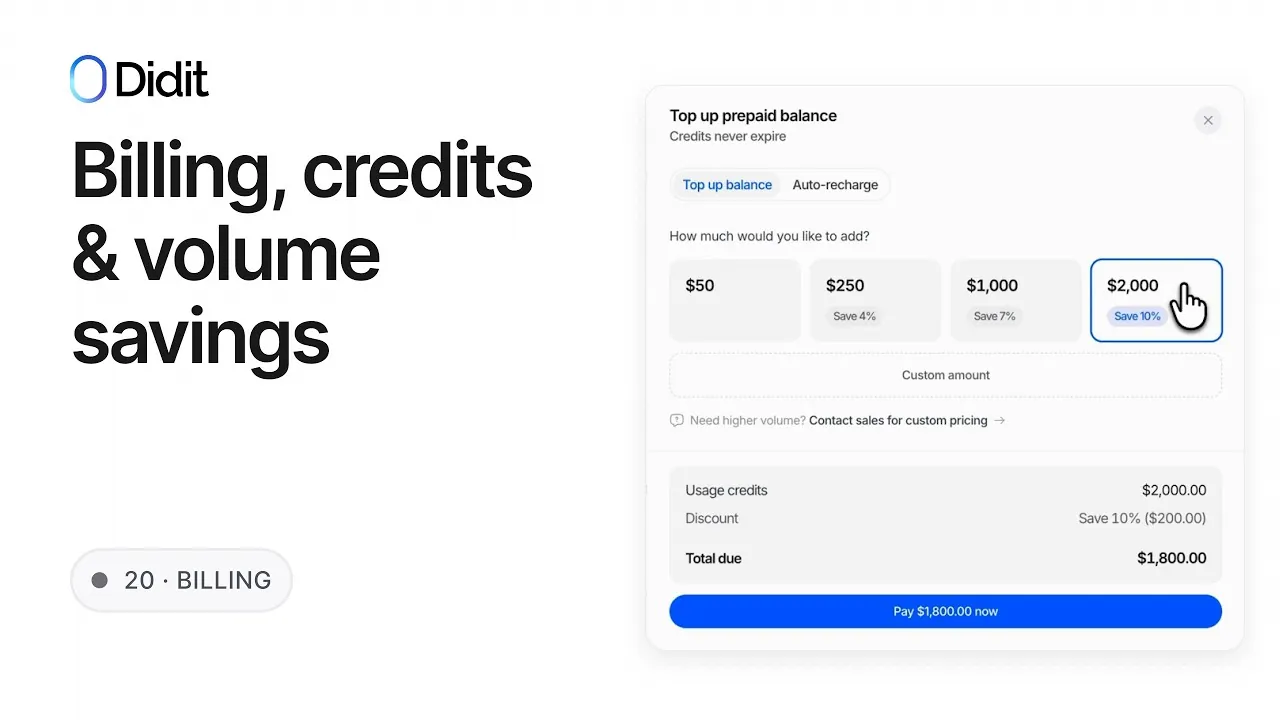
Location verification is a billable step at $0.05 per check, the unit price listed in the Location Verification overview. It is separate from Device and IP Analysis, which is $0.03 per check and is already inside the $0.33 full ID check. Adding a geofence to a KYC workflow therefore adds the Location step, not a second device and IP charge.
The review boundary is a configuration choice, not a fixed rule. With the licensing preset, a position outside the allowed areas, inside a blocked area, behind a VPN or Tor, or on an emulator is declined, and a proxy goes to review. With fraud_screening, the same findings go to review instead of decline. When REVIEW is the strongest applicable action, the Location step goes to review. Read the top-level session status to determine the overall outcome. A person then decides in the Didit Business Console: approve, decline, or ask for a resubmission. Every one of those moves is visible in the decision trace.
Worked cost example
Assume 10,000 sessions each complete one full ID check and one Location verification check, with no other billable checks.
- Full ID check: $0.33. Location verification: $0.05. Total per session: $0.33 + $0.05 = $0.38.
- Monthly at list price: 10,000 x $0.38 = $3,800.
- On the Scale plan, Didit prices are 10% lower: $0.33 x 0.90 = $0.297, and $0.05 x 0.90 = $0.045. Per session: $0.297 + $0.045 = $0.342.
- Scale usage before credit: 10,000 x $0.342 = $3,420.
- Total at monthly plan pricing: $3,420 - $350 of monthly credit + $299 plan fee = $3,369.
For eligible Free plan organizations, $10 in monthly credit covers 200 completed Location checks at $0.05 each, or 26 sessions that each complete a $0.33 full ID check and a $0.05 Location check. Sandbox testing is free and unlimited on every plan.
Developers who want an assistant to help draft the node configuration can use the hosted server: MCP setup for every client.
Sources
- Didit docs: Location Verification API, geofencing and IP distance
- Didit docs: Location verification warnings
- Didit docs: workflow feature configs, Location verification
- Didit docs: Create Session API
- Didit docs: Retrieve Session API
- Didit docs: data models and the warning object
- Didit docs: webhooks and signature verification
- Didit docs: verification statuses
- Didit docs: pricing and billing rules
- Didit pricing page and pricing as JSON, read November 26, 2026
- Didit MCP server
Next step: open the sandbox at business.didit.me, create a workflow with a Location verification node, and test one allowed country and one blocked country before you publish. No sales call, and sandbox testing is free.
Try it
Try this in the sandbox
Run the check this guide describes, free.
The product this post is about, taken from its topic. Run it free in the sandbox.
Author
Alberto Rosas
Co-founder and CEO

Keep reading
Other guides in the same topic.
 BIPA, CUBI and Colorado Biometric Consent for Selfie Checks
Illinois BIPA requires written notice and a written release. Texas CUBI requires prior notice and consent for commercial capture. Colorado requires prior notice and consent for covered collection.
Alberto RosasNov 26, 2026 How to Add Identity Verification to Okta with Didit (2026)
Didit connects to Okta’s BYO IDV profile through an OpenID Connect bridge using PAR, PKCE S256 and verified claims. Full ID checks cost $0.33 at list price. The request profile is strict.
Alberto RosasNov 26, 2026 Didit Proof of Address API: cURL Tutorial With Name Matching
POST a utility bill to /v3/poa/ with your x-api-key plus the expected address and names. Set a client timeout of at least 45 seconds, read poa.status and poa.warnings, and budget $0.20 at list price per completed live check.
Alberto RosasNov 26, 2026Questions
Frequently asked questions
How do I geofence identity verification by country with Didit?
Turn on is_geolocation_geofencing_enabled in the workflow's GEOLOCATION feature config, then list the countries you serve in geolocation_areas. Only a position inside an allowed area passes the area check, and the list needs at least one allowed area. Didit bills the step at $0.05 per check.
What is the difference between device_and_ip, device_only and ip_only?
device_and_ip checks the device position against the IP location of the connection it was sent from. device_only uses the device position and never compares it with the IP. ip_only never asks for a permission and judges the connection's IP location at city level within a 50 km radius, with no accuracy, freshness or approximate-grant rule.
What does LOCATION_OUTSIDE_GEOFENCE mean?
It means the accuracy circle that was evaluated sits entirely outside every allowed area, so the person verified from a place you do not serve. The selected position source decides whether that circle came from the device or from an IP estimate. The action you attached to that warning decides whether the step is declined, sent to review, or left alone. The person is shown where the service is available, never which areas are blocked.
What does LOCATION_GEOFENCE_UNDETERMINED mean, and why is it not outside?
It means the accuracy circle crosses an edge that decides the answer, so Didit cannot say inside or outside. The code is never reported as outside, which is why you should not auto-decline on it alone. The action configured on that warning governs what happens next. If your policy permits, route it to review or try another device reading with better accuracy.
Do blocked areas override allowed areas in Didit geofencing?
Yes, for the area verdict. A circle fully inside a blocked area raises LOCATION_IN_BLOCKED_AREA in addition to the allowed-area verdict, and the blocked side takes precedence. The licensing preset declines that warning by default and fraud_screening sends it to review. That is how you serve a country but exclude one region of it.
Can I geofence by US state or by ISO 3166-2 region?
Yes. An area can be regions of one country in ISO 3166-2 form, which for the United States means a code such as US-CA. You can mix countries, regions, circles and polygons in the same list, up to 50 areas, as long as the list has at least one allowed area.
How many areas can I put in geolocation_areas?
A list holds up to 50 areas, and a polygon can carry 3 to 200 points. If your policy needs more shapes, consolidate them into polygons only if the resulting boundaries still match the policy you intend.
How much does Didit location verification cost?
It costs $0.05 per check, charged on top of the other steps in the workflow. A full ID check is $0.33, so a KYC session with a geofence is $0.38 before plan discounts. The Scale plan takes 10% off Didit prices.
Does geofencing work if the person refuses the location permission?
On a node that asks the device, an attempt with no position is judged as the refusal or failure it is, and the IP location never stands in for it. geolocation_refusal_path decides what happens next: retry_then_handoff by default, continue_without_location, or end_session. If you cannot ask for a permission at all, use ip_only.
Can a VPN, proxy or Tor connection change the geofence result?
They are separate warnings with their own configured actions, judged alongside the areas rather than instead of them. device_and_ip compares the device position with the IP location of the connection, which is what makes a distant relay visible as a distance finding. The licensing preset declines a position behind a VPN or Tor and sends a proxy to review, and you can set each action yourself.
Is the person's location at verification time the same as their document's issuing country or nationality?
No, they are different signals. The geofence reads where the person is during the session, from the device position or from the connection's IP location. The document's issuing country and the person's nationality come from ID verification, and the residential address comes from the document or a proof of address step. A person can legitimately be outside the country that issued their passport, so compare the device address with the document address through parsed_address rather than assuming the two should match.
Can I set up geofencing through an AI assistant or the Didit MCP server?
You can connect an AI assistant to Didit through our free MCP server with OAuth at https://mcp.didit.me/mcp. To draft a geofence configuration, give your assistant the Location feature config reference and your approved area list, then validate its output against the reference before publishing.
Compliance built in
Audited, certified and attested.
We hold the certifications and build each country's rules into your flows, so you can launch anywhere without worrying. Security and Compliance center
- Regulation encoded into your flows
Tell us what you do and where. Didit lists the rules that apply to you, with sources, and builds the checks each country needs into one workflow.
- Ready for AMLR
Every requirement of the new EU anti-money laundering rules, from checking customers to human review, is already covered by a Didit check.
- Tested in Spain's Treasury sandbox
Spain's Treasury published its supervised sandbox report on Didit's NFC plus active liveness onboarding; SEPBLAC took part and valued the added measures positively.
- Audited, not self-declared
iBeta Level 1 and Level 2. Liveness tested under ISO/IEC 30107-3.
Your obligations · 3 regions
 SOC 2 Type 2
 ISO 27001
 iBeta Level 1 and Level 2
 EU regulator attestation
 FSM youth protection
 GDPR
 EBA remote onboarding
 MiCA compatible
 FIDO Alliance member
- AMLREU AML Regulation ready
Integration · Didit MCP
Run Didit from your own AI agent
Connect Didit to Claude, Cursor, VS Code or ChatGPT and just ask in plain words. Your agent can do anything you can do in the console, with the same permissions you have.
 Add to Claude
 ChatGPT
 Cursor
- Build workflowsDescribe the checks you need. The agent creates and publishes the flow.
- Run investigationsAsk why a session was declined, review cases, search people and companies.
- Change rulesCreate payment rules, test them on past data and switch them on.
- Pull reportsAsk for numbers, exports or the audit log.
Didit Academy