Auto-Trigger Didit Identity Verification in Salesforce Flow Builder
Install the Didit Salesforce package, enter the API key, workflow ID and webhook secret, then add its Invocable Action to a lead-creation Flow. Results write back to the Lead. $0.33 per full KYC check.
 Alberto RosasCo-founder and CEO
Contents
In this guide
Jump to the part you need.
This guide is for the Salesforce admin or RevOps engineer who wants every new Lead verified without a rep clicking a button. The Didit managed package ships a built-in Invocable Action, so Flow Builder can start a verification when a Lead is created, with the API key kept inside Salesforce. A full KYC check costs $0.33. Two caveats: you need Enterprise edition or higher, and an empty Webhook Secret makes the package reject every incoming webhook.
Last updated: November 26, 2026. Prices checked against the live Didit price feed on November 26, 2026.
| Item | Detail |
|---|---|
| Package | DiditVerifyManaged 1.0.0.2, installed from the link in the Didit docs. Installation is separate from marketplace listing approval. |
| Trigger | Built-in Invocable Action called by a Record-Triggered Flow, for example when a new Lead is created |
| Where the API key lives | Inside Salesforce. API mode creates sessions through Apex, so the key never reaches the browser |
| Fields written back | Verification Status, Identity Verified, Verified At, Didit Session ID, Verified Document Type, and the rest of the package field set |
| Price per completed KYC | $0.33: ID document $0.15 + passive liveness $0.10 + face match 1:1 $0.05 + device and IP analysis $0.03 |
| Salesforce edition | Enterprise edition or higher; Developer Edition for testing |
| Free plan | $10.00 of monthly credit for eligible organizations signing up with a work email. Sandbox testing is free and unlimited. |
| Main caveat | If the Webhook Secret field is left empty, all incoming webhooks are rejected, so late decisions never reach the record |
Start free in the sandbox at business.didit.me, with no sales call. The implementation reference for this integration is the Didit Salesforce identity verification docs, and every number is on Didit pricing. For developers, you can also connect Didit to an AI assistant through the server: MCP setup for every client.
What the built-in Invocable Action does
The package adds a Lightning component, an Invocable Action that Flow Builder can call, and the Apex behind them. When a Flow calls the action on a new Lead, four things happen in order. Apex creates a Didit session through the Didit API, using the key stored on the Didit Settings tab. The Didit SDK opens the verification flow, in a modal overlay or an inline embedded view depending on your Display Mode. The person completes the steps in your workflow. On completion, the package writes the decision back to the Lead record.
Because the write-back lands on standard fields, anything already in your org can read it: a Flow that assigns the lead to a queue, a report on verification pass rate by lead source, a validation rule that blocks a stage change until Identity Verified is true.
Be clear about the boundary. The action creates the session. It does not verify anyone by itself. The lead still has to open the flow and finish the steps, and billing is per completed check.
There are two modes. API mode is the recommended one and the one this guide uses: we built it so the API key never leaves your org, because Apex creates each session server side. UniLink mode uses a fixed verification URL that you paste into Didit Settings instead. The Mode field takes api or unilink.
Prerequisites
- A Salesforce org on Enterprise edition or higher. Developer Edition is fine for testing.
- A Didit Console account at business.didit.me with a configured workflow. See the workflow builder docs.
- Permission to install managed packages and create Sites in Setup.
- Your API key from the Console. In the current Console this is under Developers, API keys, scoped to the Application you are using.
- The workflow ID, a UUID, and the webhook signing secret from API and Webhooks.
Step-by-step: verify a new Lead automatically
Run this in a sandbox or Developer Edition first. Sandbox is free on every plan, and sandbox keys start with sk_test_.
- Install the package. Open the install link for DiditVerifyManaged 1.0.0.2: install link. Select Install for Admins Only while you configure and test, then grant access to the reps who need it once the setup is validated.
- Prepare the workflow in Didit. In the Console open Workflows, pick or build the workflow you want on a lead, and copy the Workflow ID. A typical lead workflow runs ID document verification, passive liveness and face match.
- Copy the API key. Console, Developers, API keys, for the Application. In API mode this key is used by Apex inside Salesforce, so it is never shipped to a browser bundle.
- Copy the webhook signing secret. Console, API and Webhooks. You need it for late decisions such as a reviewer moving a session from In Review to Approved. If the field is empty in Salesforce, every incoming webhook is rejected.
- Fill in Didit Settings. App Launcher, search for Didit, open the Didit app, Didit Settings tab. Set Mode to
api, paste the API key, Workflow ID and Webhook Secret, leave Vendor Data onrecord_id, set Language if you do not want browser detection, keep Auto Send Contact Data on so the record prefills the flow. Save Settings. - Add the component to the Lead page. Open a Lead, gear icon, Edit Page, drag Didit Identity Verification from the components panel, Save, Activate, Assign as Org Default. The steps are identical for Contact pages.
- Create the Flow. Setup, Flows, New Flow, Record-Triggered Flow. Object Lead, trigger on A record is created, and not on every update, so the Flow does not fire again when the package writes the result back. Add entry conditions that match your intake, for example Lead Source equals Web and Email is not null.
- Add the Didit action. Click the plus icon, search for Didit in the Action list, select the Didit invocable action. The mode, key, workflow, vendor data and language are held on the Didit Settings tab. The docs describe the action as the way Flow Builder triggers a verification automatically, for example when a new lead is created.
- Decide what happens next. Add an Update Records element that stamps Verification Requested, or a Create Task for the lead owner. Keep it small. The outcome fields are written by the package, not by your Flow.
- Save, activate and debug with a new Lead. If the action errors, test the credentials outside Flow with the documented create call, using the same key and workflow.
curl -X POST https://verification.didit.me/v3/session/ \
-H "x-api-key: $DIDIT_API_KEY" \
-H "Content-Type: application/json" \
-d '{"workflow_id":"<WORKFLOW_ID>","vendor_data":"00Q5g00000AbCdE","callback":"https://myapp.com/return"}'
A successful response containing session_url confirms the request returned a session; use the documented authentication errors to diagnose failures. A 401 means the key is wrong, malformed, revoked or expired. A 403 means no key was sent, the key lacks access to this resource, or it was called from an address outside its IP list. The auth reference lists every failure mode: API authentication.
Expected output: what lands on the Lead record
After the first successful run, open the Lead. These fields are populated by the package, and Flows and Reports can act on them immediately.
| Field | Value |
|---|---|
| Verification Status | The session result, using the documented status strings: Approved, Declined, In Review, In Progress, Not Started, Expired, Abandoned, Resubmitted, Awaiting User, Kyc Expired |
| Identity Verified | true on Approved, false on Declined |
| Verified At | Timestamp of the decision |
| Didit Session ID | The session UUID. This is the join key to the Console and to the decision API. |
| Verified Document Type | The document type read in the session |
The docs list those five fields explicitly. Read your own record page after the first test to see the full set in your org. Status strings are exact and case sensitive, so compare with strict equality in any Flow formula or Apex: "In Review", and "Kyc Expired" with a single capital K. The full lifecycle is in verification statuses.
Inputs and outputs
| Direction | Name | Source or destination |
|---|---|---|
| Input | Mode | Didit Settings: api recommended, or unilink |
| Input | Workflow ID | Didit Settings, API mode |
| Input | Vendor Data | Didit Settings: record_id, record_email, custom prefix plus record id, or none. This is what ties the returning session to the record. |
| Input | Language | Didit Settings, ISO code such as en or es, default auto detect by browser |
| Input | Auto Send Contact Data | Didit Settings, prefills the verification with record data, default true |
| Output | Verification Status, Identity Verified | Written to the record |
| Output | Verified At, Didit Session ID, Verified Document Type | Written to the record |
| Output | Webhook events | Delivered to your org. Verify the HMAC before you trust the payload. |
Receiving Didit webhooks in Salesforce
The action starts a session, but a session can change after the Flow has finished. A reviewer moves In Review to Approved. A person asks to redo a step and the session goes to Resubmitted. The package covers those updates through the webhook settings on the Didit Settings tab.
Two documented items matter. The Webhook Secret field takes the HMAC secret from the Didit Console under API and Webhooks, and it is required to receive real-time verification updates; leave it empty and every incoming webhook is rejected. Creating Sites in Setup is also listed in the package prerequisites, so confirm that permission before you start. Beyond those two, we stick to what the package documentation states rather than describing an endpoint architecture it does not document.
On the Didit side, subscribe the destination to status.updated for session status changes. There is no wildcard, so add every event family you want to receive. Then handle each request in the order the webhooks reference gives: read the raw body before parsing, verify the signature, check the timestamp, then parse. X-Signature-V2 is the recommended header, an HMAC-SHA256 over the sorted canonical JSON. X-Signature covers the exact raw bytes. Check that X-Timestamp is within 300 seconds of now, compare in constant time, and also accept the -Previous header for the 24 hours after you rotate a signing secret. Return 2xx quickly and update records idempotently, using event_id to dedupe.
The documented envelope looks like this:
{
  "event_id": "uuid",
  "session_id": "uuid",
  "status": "Approved",
  "webhook_type": "status.updated",
  "created_at": 1627680000,
  "timestamp": 1627680000,
  "application_id": "uuid",
  "environment": "live",
  "workflow_id": "uuid",
  "vendor_data": "00Q5g00000AbCdE",
  "metadata": { "user_type": "premium" },
  "decision": { }
}
The decision object is only present on Approved, Declined, In Review and Abandoned, and it mirrors the GET decision response. If you need the full decision later, fetch it with Retrieve Session using the session id you already stored on the record.
When the webhook does not update the Lead or Contact
Use this table to diagnose webhook and Flow issues. Work through it in order. Each row is a documented behaviour, not a guess.
| Symptom | Likely cause | Recovery |
|---|---|---|
| The action errors in Flow and no session appears | Wrong API key or Workflow ID, or the org is in UniLink mode without a UniLink URL | Re-copy both from the Console, save Didit Settings, debug the Flow again |
| 401 or 403 from the create call | Key wrong, revoked or expired, or lacking access, or called from an address outside its IP list | Issue a key with the access this integration needs, or remove the IP restriction |
| Session completes but the Lead still shows the old status | Webhook Secret is empty, so all incoming webhooks are rejected | Paste the HMAC secret from API and Webhooks into Didit Settings and save |
| Webhooks arrive but the wrong record, or no record, updates | Vendor Data mode mismatch. record_email stops working when the lead changes email; a custom prefix breaks when the Flow changes. | Set Vendor Data to record_id and match on Didit Session ID when you need to reconcile |
| Record shows Not Started and nothing else happens | The person never opened the link. Sessions move to Expired when the link is never opened and Abandoned when someone starts but does not finish. | Resend the link or call the action again, and shorten session expiration if volume matters |
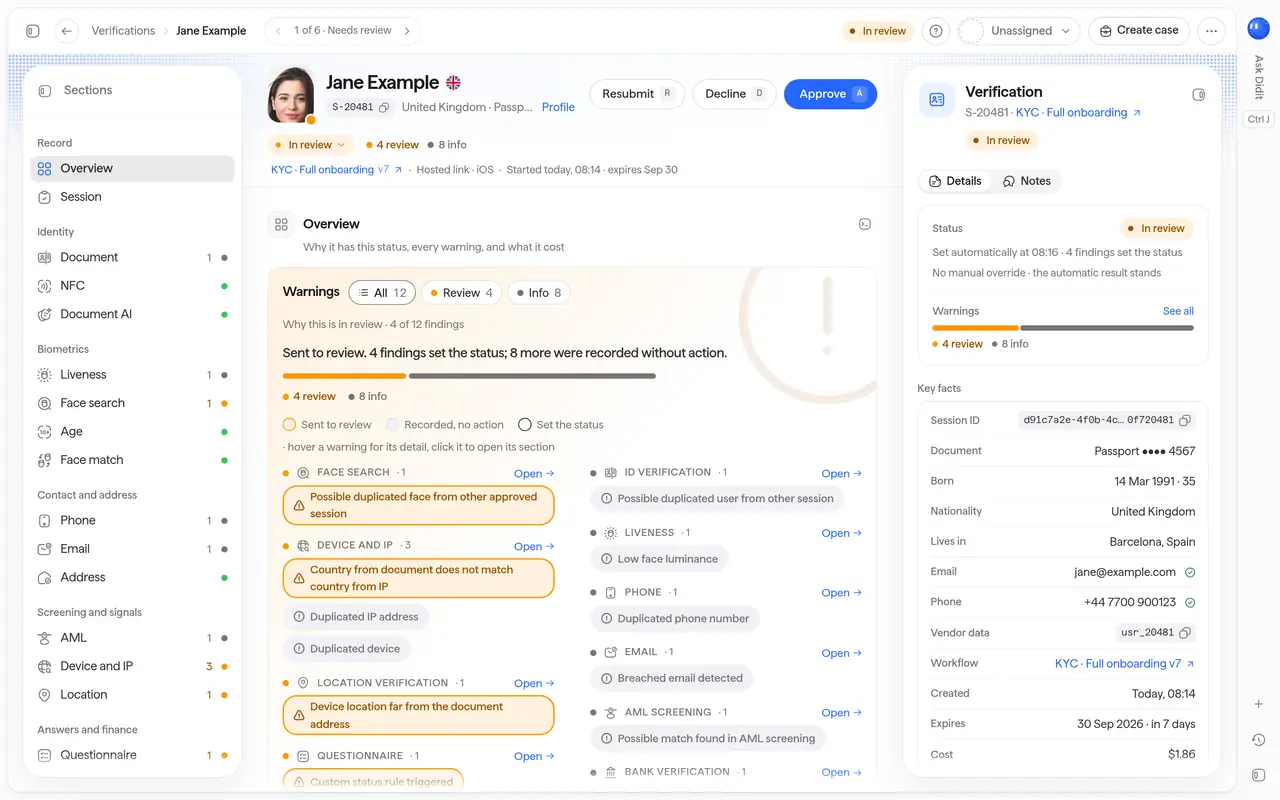
| Status sits on In Review | A person has to decide. Automated checks flagged warnings. | Approve, decline or request resubmission in the Console. That decision fires a further status.updated webhook. |
| Two sessions on one Lead | The Flow also runs on update, and the package writes results back, which triggers the update | Trigger only on create, or add an entry condition that stops when Didit Session ID is not blank |
What it costs: a worked example
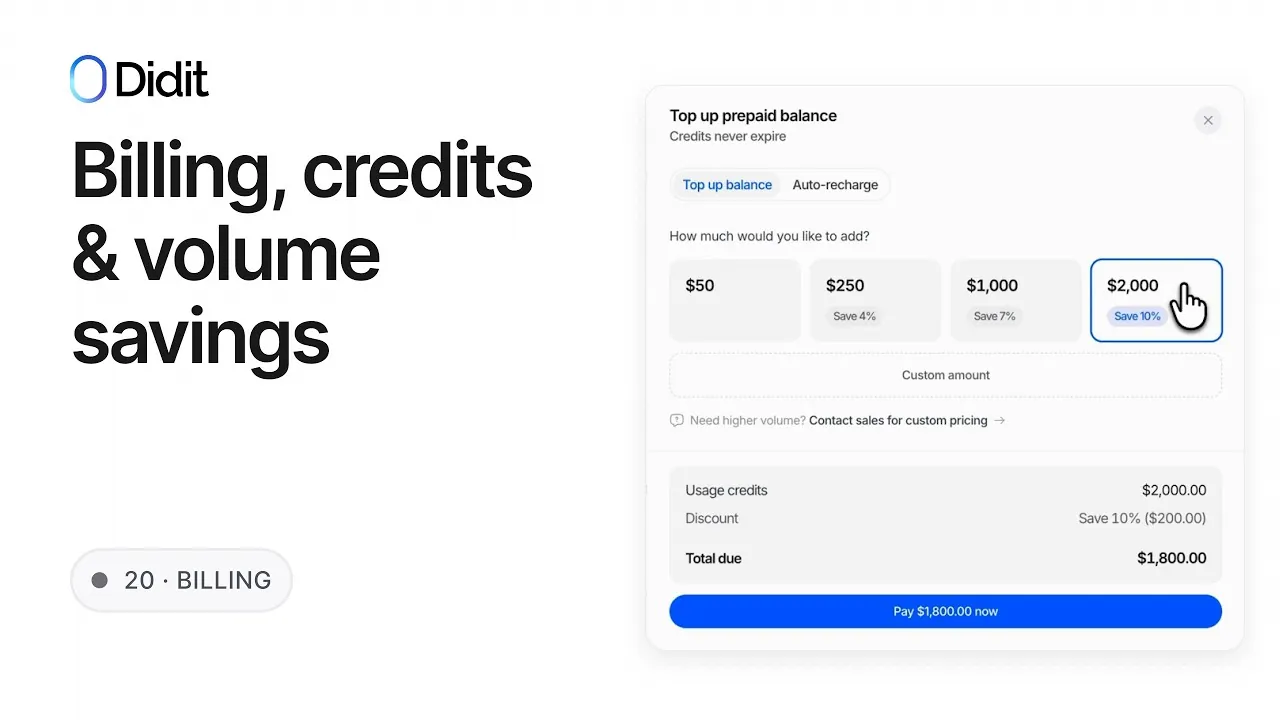
Billing is per completed check, paid from prepaid credit. The docs pricing page lists the few billable exceptions, such as no-match database lookups and retries. Sessions that are never opened produce no completed check.
On the live price feed, a full ID check is made of these current components: ID document verification $0.15 + passive liveness $0.10 + face match 1:1 $0.05 + device and IP analysis $0.03 = $0.33. Your own workflow may run fewer steps, and billing is per completed check.
Take a team with 4,000 new leads a month. 2,500 open the link and 2,000 finish.
- KYC only: 2,000 x $0.33 = $660.00 a month
- Add AML screening at $0.20 to the same workflow: $0.33 + $0.20 = $0.53 per completed check, so 2,000 x $0.53 = $1,060.00 a month
- Same volume on the Scale plan, which takes 10% off every Didit price: 2,000 x $0.297 = $594.00 a month for KYC only
- On the Free plan, $10.00 of monthly credit buys $10.00 / $0.33 = 30 full checks at list price
A business lead follows the same Flow with a KYB workflow. Registry retrieval is priced by country and data tier from $2.00 per company, plus $0.20 entity AML, $0.20 person AML per owner and $0.33 per linked person KYC. Owners and officers each take a linked full ID check.
Paid steps and review boundaries
Know which part of the Flow spends money and which part needs a human.
- Paid: each completed check. ID document $0.15, passive liveness $0.10, face match $0.05, device and IP $0.03, active liveness $0.15, NFC chip reading $0.15, AML screening $0.20, proof of address $0.20, custom questionnaires $0.10.
- Included at no extra price: the Workflow Orchestrator, the MCP server, SDKs and reusable KYC.
- Automated: identity, liveness, face match, device and IP and AML results drive most sessions straight to Approved or Declined and the record is written back without anyone touching it.
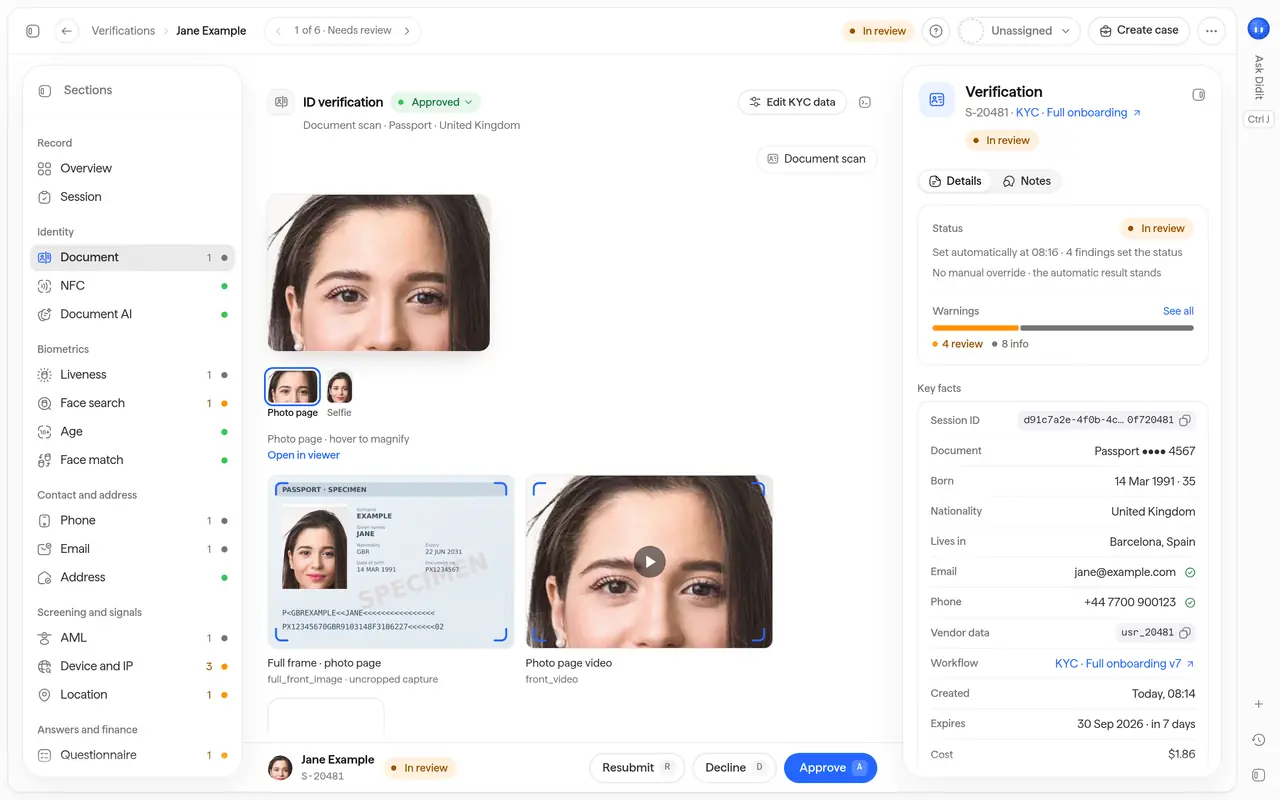
- Human boundary: any session flagged with warnings goes to In Review and a reviewer in the Didit Console approves, declines or requests resubmission. A reviewer can also move an Approved, Declined, Resubmitted or Kyc Expired session to another status through the update-status endpoint. Every one of those moves fires a webhook, which is why the signing secret is not optional.
Didit publishes SOC 2 Type 2 and ISO/IEC 27001:2022 certification, and works with 4,000+ companies across 220+ countries and territories and 14,000+ document types. The Salesforce package is one of the web SDK routes; the full instructions are in the Salesforce integration docs.
Sources
- Didit docs: Salesforce identity verification app, KYC and KYB
- Didit docs: webhooks, HMAC signing and event types
- Didit docs: verification statuses and session lifecycle
- Didit docs: Create Session API
- Didit docs: Retrieve Session decision data
- Didit docs: API authentication and failure modes
- Didit docs: workflow builder
- Didit MCP server
- Didit pricing and pricing in the docs, read November 26, 2026
Next step: open the sandbox at business.didit.me, install the package in a Developer Edition org and run one test Lead through the Flow. No sales call, and the sandbox is free on every plan.
Try it
Try this in the sandbox
Run the check this guide describes, free.
The product this post is about, taken from its topic. Run it free in the sandbox.
Author
Alberto Rosas
Co-founder and CEO

Keep reading
Other guides in the same topic.
 What Is the Purpose of FICA in South Africa? 2026 Guide
FICA is South Africa's anti-money laundering law. It creates the Financial Intelligence Centre and requires accountable institutions to identify and verify clients, screen for PEP and sanctions risk and report suspicious.
Alberto RosasNov 26, 2026 Sixth Money Laundering Directive (6AMLD): What Changed and Which Rules Apply
6AMLD is Directive (EU) 2018/1673: Member States must criminalise laundering, widen predicate offences and set a four-year penalty floor. It adds no new due diligence duties for firms.
Alberto RosasNov 26, 2026 Automated Sanctions Screening: Canada, the Entity List and Embargoes
Automated sanctions screening matches people and companies against lists such as Canada's autonomous sanctions made under SEMA and JVCFOA and the OFAC SDN List, and returns candidate hits scored for identity confidence and.
Alberto RosasNov 26, 2026Questions
Frequently asked questions
How do I trigger Didit identity verification when a new lead is created in Salesforce?
Install the Didit managed package DiditVerifyManaged 1.0.0.2, fill in the API key, Workflow ID and Webhook Secret on the Didit Settings tab, then build a Record-Triggered Flow on Lead. Add the Didit Invocable Action to the Flow. On completion the package writes Verification Status, Identity Verified, Verified At, Didit Session ID and Verified Document Type back to the Lead.
Does the Didit Salesforce package keep my API key inside Salesforce?
Yes, in API mode. The component and the Invocable Action create sessions through Apex, so the API key is used server side inside your org and never shipped to a browser or mobile bundle. That is the reason API mode is the recommended setting. UniLink mode uses a fixed verification URL instead.
What is the difference between API mode and UniLink mode?
API mode creates a new session for each record through Apex, which is what lets the package tie the session to the record id and write the result back automatically. UniLink mode points at a fixed verification URL and is simpler when you only want a verification link on the page. Use API mode for Flow automation.
Why is my Didit Salesforce webhook not updating the contact record?
Check three things in order. The Webhook Secret field in Didit Settings must be filled in, because an empty field makes the package reject every incoming webhook. The destination in the Didit Console must be subscribed to status.updated. And Vendor Data should be record_id, because an email-based match stops working when the contact's email changes.
Where do Didit webhook events arrive in my Salesforce org?
The package receives real-time verification updates through the Webhook Secret configured on the Didit Settings tab, using the HMAC secret from the Didit Console under API and Webhooks. If that field is empty, every incoming webhook is rejected and the record keeps the status it had when the session was created. The package documentation also lists permission to create Sites in Setup as a prerequisite, so confirm it before you go live.
Which header do I verify on a Didit webhook?
Use X-Signature-V2, an HMAC-SHA256 over the sorted canonical JSON, which Didit recommends. Also check that X-Timestamp is within 300 seconds of now, compare in constant time, and accept the -Previous header for 24 hours after a secret rotation. If you fall back to the deprecated simple signature, re-fetch the decision instead of trusting the payload.
How much does it cost to verify every new lead?
One full KYC check is $0.33: ID document $0.15, passive liveness $0.10, face match 1:1 $0.05, device and IP analysis $0.03. Billing is per completed check, so leads who never open the link do not produce a completed check. Add AML screening at $0.20 for a $0.53 check, or take 10% off every price on the Scale plan.
What happens when a verification comes back In Review?
Nothing writes Approved automatically. A reviewer opens the session in the Didit Console and approves, declines or requests a resubmission, and that decision fires a new status.updated webhook which updates the Lead. Your Flow should be triggered on create only so the write-back does not start a second session.
Can I use the same Flow for a business lead with KYB?
Yes. The package documentation covers KYC and KYB. Confirm the fields exposed by your installed package before designing a business-lead Flow. Registry retrieval is priced by country and data tier from $2.00 per company, plus $0.20 entity AML, $0.20 person AML per owner and $0.33 for each linked person KYC.
Do I need Apex to call the Didit API from Salesforce?
No. The package ships the Apex that creates the session, and Flow Builder calls it through the Invocable Action. Your setup work is on the Didit Settings tab and in Lightning App Builder. The documented REST route behind it is Create Session, which is also the quickest way to test credentials outside Flow.
Compliance built in
Audited, certified and attested.
We hold the certifications and build each country's rules into your flows, so you can launch anywhere without worrying. Security and Compliance center
- Regulation encoded into your flows
Tell us what you do and where. Didit lists the rules that apply to you, with sources, and builds the checks each country needs into one workflow.
- Ready for AMLR
Every requirement of the new EU anti-money laundering rules, from checking customers to human review, is already covered by a Didit check.
- Tested in Spain's Treasury sandbox
Spain's Treasury published its supervised sandbox report on Didit's NFC plus active liveness onboarding; SEPBLAC took part and valued the added measures positively.
- Audited, not self-declared
iBeta Level 1 and Level 2. Liveness tested under ISO/IEC 30107-3.
Your obligations · 3 regions
 SOC 2 Type 2
 ISO 27001
 iBeta Level 1 and Level 2
 EU regulator attestation
 FSM youth protection
 GDPR
 EBA remote onboarding
 MiCA compatible
 FIDO Alliance member
- AMLREU AML Regulation ready
Integration · Didit MCP
Run Didit from your own AI agent
Connect Didit to Claude, Cursor, VS Code or ChatGPT and just ask in plain words. Your agent can do anything you can do in the console, with the same permissions you have.
 Add to Claude
 ChatGPT
 Cursor
- Build workflowsDescribe the checks you need. The agent creates and publishes the flow.
- Run investigationsAsk why a session was declined, review cases, search people and companies.
- Change rulesCreate payment rules, test them on past data and switch them on.
- Pull reportsAsk for numbers, exports or the audit log.
Didit Academy